NexTrain (Apple iOS / Android OS)
Welcome
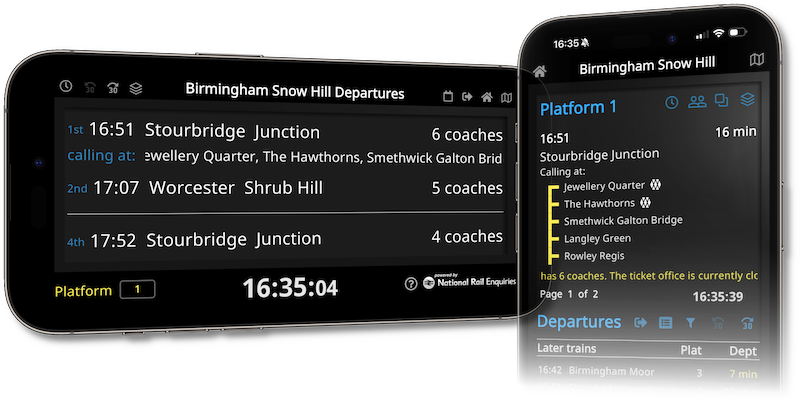
Welcome to NexTrain, your source for GB train status updates.
NexTrain delivers real-time train departure information for England, Scotland and Wales straight to your phone — powered by National Rail Enquiries, the same trusted source behind the station display boards across the country.
Getting Started


Portrait Mode
Header
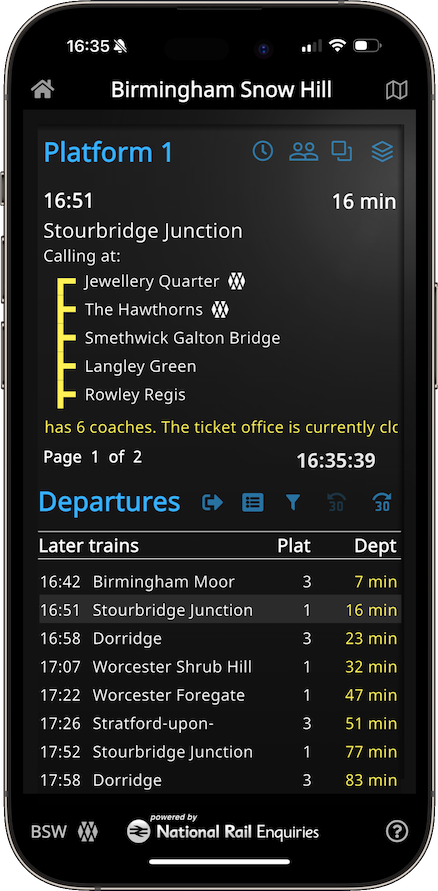
- At the top of the screen you can see the current station name
- Tap the station name to go to Station Selection screen where you can search and also manage favourites
- The button on the left of header will take you to your home station (if you have one set in favourites)
- The button on the right will take you to your nearest station.
Top half of screen
- View details of the currently selected departure.
- From here you display the departure (or arrival) time, carriages and loading information
- You can also choose from 4 great board layouts or change your whole theme
- Any status information about the station or current service will scroll for you to read
Bottom half of screen
- Tap Departures to view a list of trains leaving the currently selected station.
- From here you can show arrivals/departures, expand routing (via) information, filter services or jump forwards/backwards in time 30 minutes
Buttons and controls
- Visit our How To guide to get the lowdown on all of the various buttons and controls
- Alternatively long-press on a button to show a pop-up that tells you what it does
⚠️ You need to give permission to use location for the nearest station feature to work!
Landscape Mode

Header
- In the header you can see the current station name
- Tap the station name to go to Station Selection screen where you can search and also manage favorites
- Tapping the board icon in the header (to the right of the station name) will rotate through the available platforms
Main part of the screen
- View the trains calling at the current platform
- 1st and 2nd Trains are always called out, and you see calling points for the 1st train
- 3rd and subsequent trains will scroll below every few seconds
Footer
- Confirms your currently selected platform and the time
Buttons and controls
- Visit our How To guide to get the lowdown on all of the various buttons and controls
- Alternatively long-press on a button to show a pop-up that tells you what it does
Portrait Features
These additional screens are available using the buttons indicated
Select Station
Tap on the station name when in Portrait (or Landscape) modes to bring up the Station Selection screen.
Keyboard
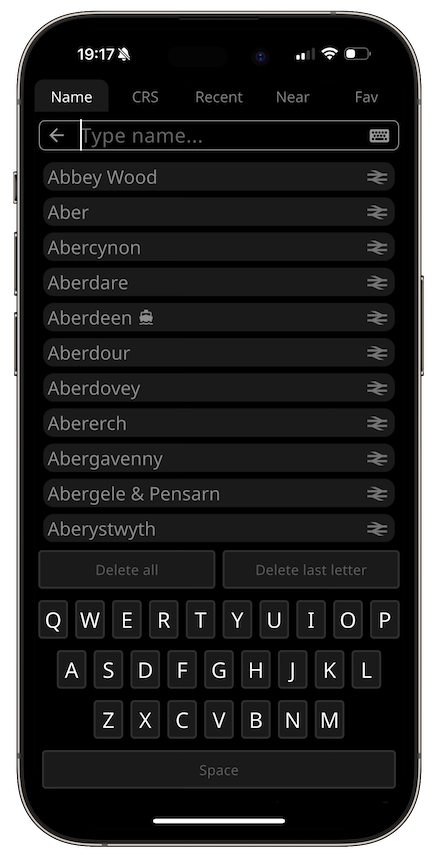
- The station selection screen has a custom keyboard just like on station ticket machines. The next available letter(s) are highlighted as you type.
- However if you'd prefer to use your phone's built in keyboard just tap on the keyboard icon to switch.
Stations
- Name - Type part of the station name to search
- CRS - Type part of the station Computer Reservation System codes to search (eg: MAN for Manchester Piccadilly)
- Recent - Stations you have selected while you've been using NexTrain
- Near - If you've given permission to use your location then you'll see the 20 nearest stations listed here
Stations
- Favourites - Tapping on a rail icon will mark any station as a favorite.
- Home/Work - If you swipe right on a station name it will bring up some additional icons where you can mark a home or work favorite.
- You can view your favourites in the Fav view of this screen.
Filter Destination
Tap on the filter icon to bring up the a screen of calling points. Choose a calling point and the destination list will prioritize those services at the top.

Filtering
- Simply search the list and tap on the station to filter
- If you tap on the filter icon with a filter already selected it will be cleared, tap again to re-select
- If you tapped the button by accident, just tap Cancel
- NexTrain will remember the filter you set for each station separately!
Favourites
- If you've marked any favourites, and they are in the calling point list then they'll be shown at the top
⚠️ The calling points shown are current calling points of current services from this station, it is not a list of all possible calling points from the station, only services that are departing or arriving at this time
Arrange Boards
Tap on the overlapping squares to bring up the Arrange Boards screen.
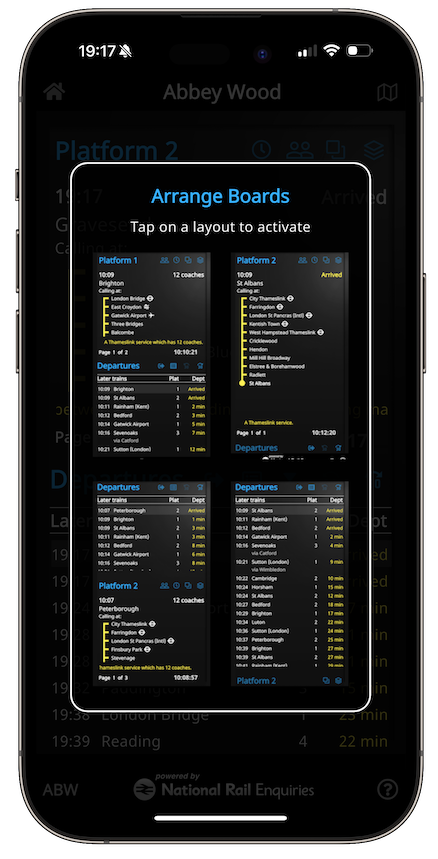
Choose A Layout
- Tap on a layout to activate it.
- Tap outside the box and the screen will disappear. Or you can just wait a few seconds
The 4 Board Layouts
Taken clockwise:
- Information / Destinations - Details of the currently selected service show above, a list of services below.
- Information only - Details of the currently selected service. You can swipe right/left to go through the available services.
- Destinations only - A list of destinations. Useful if you want to show more destinations at a glance.
- Destinations / Information - A list of services shown above, details of the currently selected service show below,
Tip! Double tap on a service in the destinations list to go directly to the Information Only View
Select Theme
Tap on the layered squares to bring up the Theme gallery.
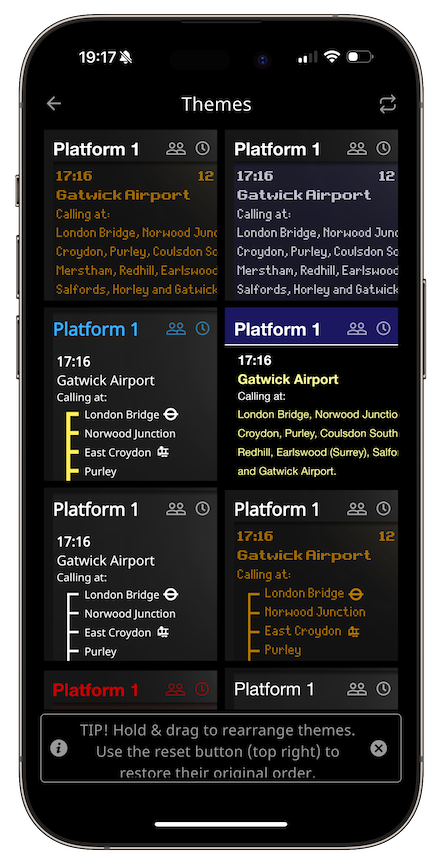
Available Themes
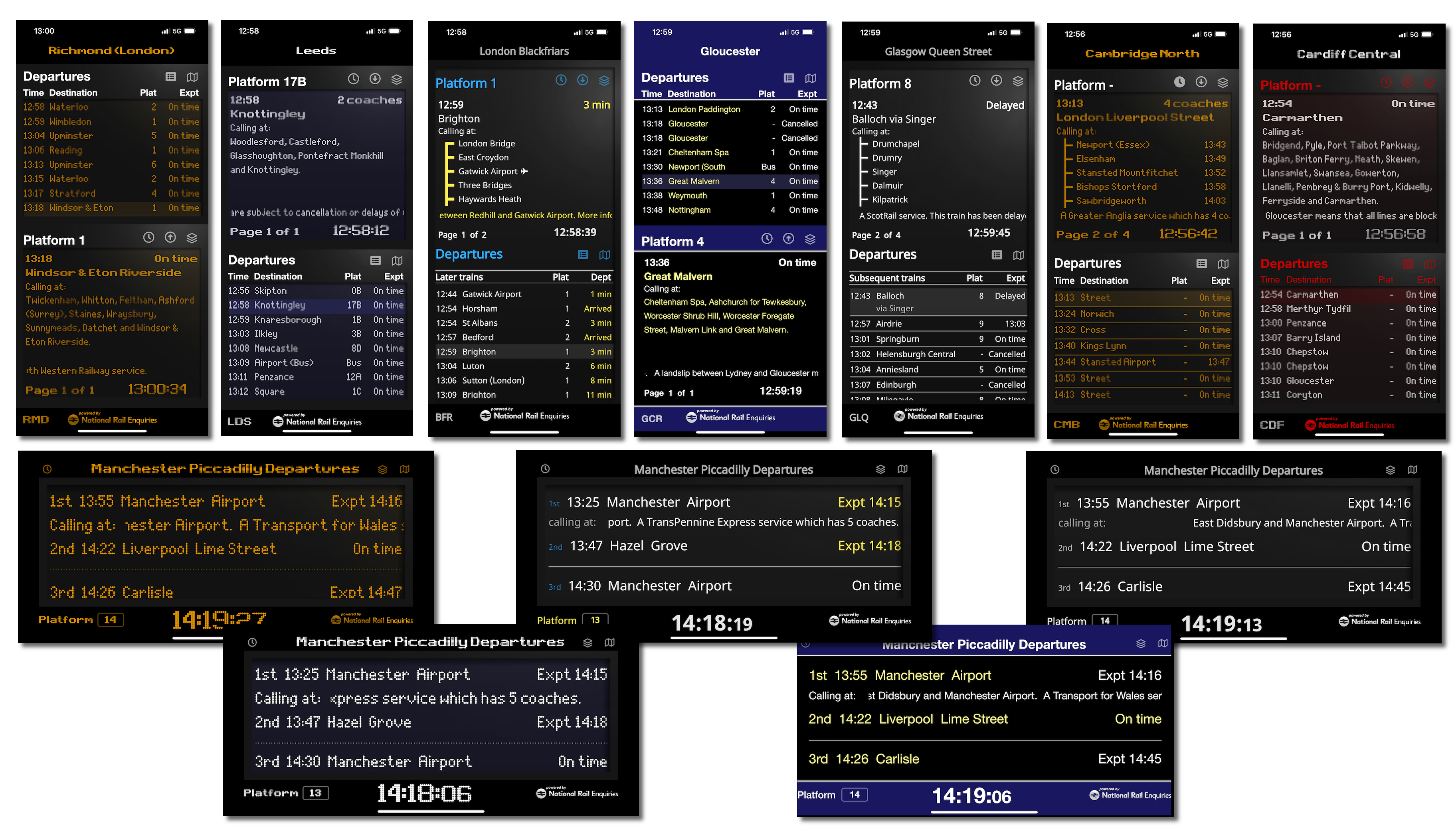
- There are 18 great themes to choose from! Scroll through to see them all.
- If you have particular favourites you can drag to re-order the list. Or tap the reset button (top right) to return to the original order
- There are many different styles, most modeled on real world display boards
- Classic themes include Dot Matrix and Solari (clapper board) style
- We also have some more modern styles that you will recognize from particular Train Operating companies including some of the more recent digital displays.
- New themes will be added in the future for you to enjoy!
❤️ Which will be your favorite?
Connections

Blackpool Tramway

Edinburgh Trams

Airports
Ferries

Nottingham NET

West Midlands Metro

Tyne & Wear Metro

Sheffield SuperTram

Glasgow SPT

Merseyrail

Metrolink
Transport For London
Themes
Choose from a wide range of departure board themes to suit your preference
Upgrade To NexTrain Pro
Unlock NexTrain Wear, Drive and Widget* and a fully ad-free experience to get more out of your journey.
Pro Monthly
£
Our
premium, ad-free experience
1.99
/mo
- 50p per week
- All
the features of Mobile
- 🚫 No Ads
- 🚘 Drive
- ⌚️ Wear
- 📺 TV (Android Only*)
- ⚙️ Widget (Android only*)
Pro Annual
£
Our most popular
option
19.99
/yr
- Only 39p / week
- All the features of Mobile
- 🚫 No Ads
- 🚘 Drive
- ⌚️ Wear
- 📺 TV (Android Only*)
- ⚙️ Widget (Android only*)
* NexTrain Widget and TV are currently only available on
Android